
hiberfil.sys
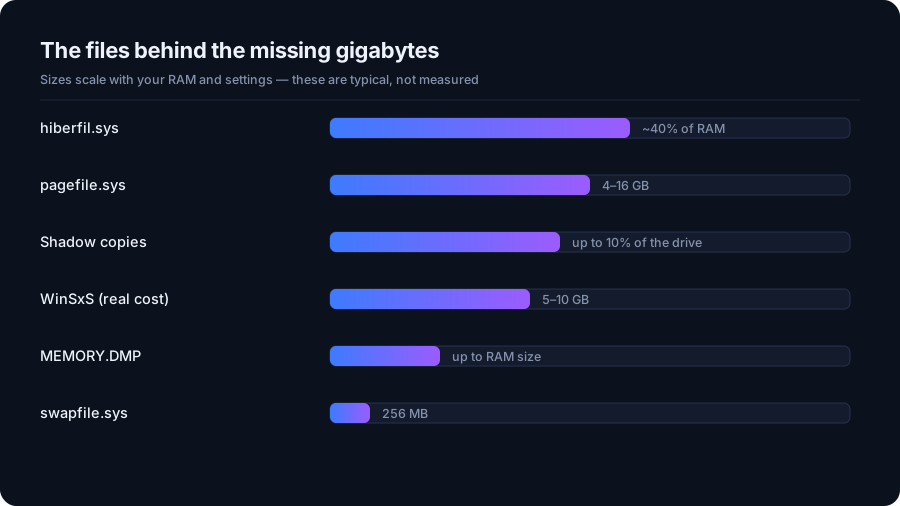
Hibernation writes the contents of memory to disk so the machine can power off completely and resume where it was. Windows reserves the file in advance, by default around 40% of installed RAM — so 13 GB on a 32 GB machine. Fast startup uses the same file, which is why turning hibernation off also turns that off.
# Remove the file entirely (disables hibernate and fast startup)
powercfg /hibernate off

# Or keep hibernation but shrink the reservation
powercfg /hibernate /size 50
pagefile.sys and swapfile.sys
The page file is virtual memory backing: Windows moves inactive pages there to keep RAM
available. It grows and shrinks on its own. Disabling it to save space is a bad trade —
programs crash instead of paging, and crash dumps stop working. If C: is tight and
you have a second fast drive, move it rather than remove it.
swapfile.sys is a separate, small file used for suspended Store apps. It is a few
hundred megabytes and not worth thinking about.
Shadow copies
System Restore and File History both use the Volume Shadow Copy service, which reserves a percentage of the drive. It is invisible in Explorer, and on a small SSD it can quietly hold tens of gigabytes.
# What is reserved, and what is actually used
vssadmin list shadowstorage

# Cap it instead of switching protection off
vssadmin resize shadowstorage /for=C: /on=C: /maxsize=10GB
Capping is better than disabling
Turning System Protection off deletes every existing restore point. Capping the allowance keeps the most recent ones and bounds the cost.
Memory dumps
After a blue screen, Windows writes C:\Windows\MEMORY.DMP plus smaller
minidumps. A full dump can be the size of your RAM. Once the crash has been diagnosed — or if
it happened months ago and never repeated — the file is disposable, and Disk Cleanup lists it
as "System error memory dump files".
WinSxS, and why it lies
Explorer reports C:\Windows\WinSxS as huge because it counts hard-linked files
that also live elsewhere; the real additional cost is usually a fraction of what is shown.
Never delete from it by hand. DISM /Online /Cleanup-Image /AnalyzeComponentStore
reports the genuine reclaimable size, and /StartComponentCleanup removes it
safely.
Seeing them at all
Explorer hides protected operating system files even with "hidden items" switched on. A storage analyzer that runs with the right permissions shows them as what they are: a handful of large, purposeful files, most of which are doing a job worth the space. The ordered fix for a full C: drive puts them in the right priority.
Seeing what is really there
The quickest audit is a single PowerShell command that lists the big protected files with their real sizes:
Get-ChildItem C:\ -Force -File |
  Where-Object Length -gt 500MB |
  Sort-Object Length -Descending |
  Format-Table Name, @{n='GB';e={[math]::Round($_.Length/1GB,2)}}

# What the component store can genuinely release
DISM /Online /Cleanup-Image /AnalyzeComponentStore
Decide with the trade-off in front of you
| File | Reclaim by | What you give up |
|---|---|---|
hiberfil.sys | powercfg /hibernate off | Hibernate and fast startup |
pagefile.sys | Move to another drive | Nothing, if sized sensibly |
| Shadow copies | vssadmin resize shadowstorage | Fewer restore points |
MEMORY.DMP | Disk Cleanup | Crash diagnosis for that event |
WinSxS | DISM /StartComponentCleanup | Rollback of superseded updates |
C:\Windows.old | Storage settings | Rollback to the previous Windows |
Why Explorer's numbers disagree with everyone else's
Three effects stack up. Protected system files are hidden by default, so they are missing from
folder totals. Hard links mean the same bytes are counted more than once, which is why
WinSxS looks catastrophic and is not. And shadow copy storage belongs to the volume
rather than to any folder, so it appears nowhere at all. Add them together and a drive can look
40 GB "unaccounted for" while behaving perfectly normally.
The short version
These files exist for a reason and most of them earn their space. Hibernation on a desktop that never hibernates is the one easy win; capping restore point storage is the one worth doing on a small SSD; everything else is better left to Windows unless you are genuinely out of room. And if the gap between "used" and "what I can see" still bothers you, scan the drive with a tool that can read protected files and count hard links honestly — then you are arguing with facts rather than with Explorer.
Quick answers
Can I delete hiberfil.sys?
Not directly, but running powercfg /hibernate off removes it. You lose hibernate and fast startup in exchange for roughly 40 percent of your RAM size in disk space.
Should I disable the page file to free space?
No. Windows uses it to keep memory available and to write crash dumps. Move it to another drive if C: is tight, but do not remove it.
Why is WinSxS so large?
Explorer counts hard-linked files that also exist elsewhere in Windows, so the reported size is inflated. Use DISM to see and reclaim the genuine amount.
See where your space actually went
DriveXos scans a drive in seconds, shows every folder by size, and removes only what you tick — on Windows and Mac, free to use.