
Dashboard
FreeLive used / free / total for each drive, an honest 0–100 storage health score with its reasons, SSD or HDD detection, a category breakdown and a safe-cleanable estimate.
No vague promises about “optimising your PC”. Here is precisely what DriveXos inspects, what it can remove, and what it will always refuse to touch.
Included in the free plan.
Live used / free / total for each drive, an honest 0–100 storage health score with its reasons, SSD or HDD detection, a category breakdown and a safe-cleanable estimate.
A category-coloured treemap of the whole drive. Group by folder, risk, file type or recoverable space, click any block to drill in, and go straight from a block into cleanup.
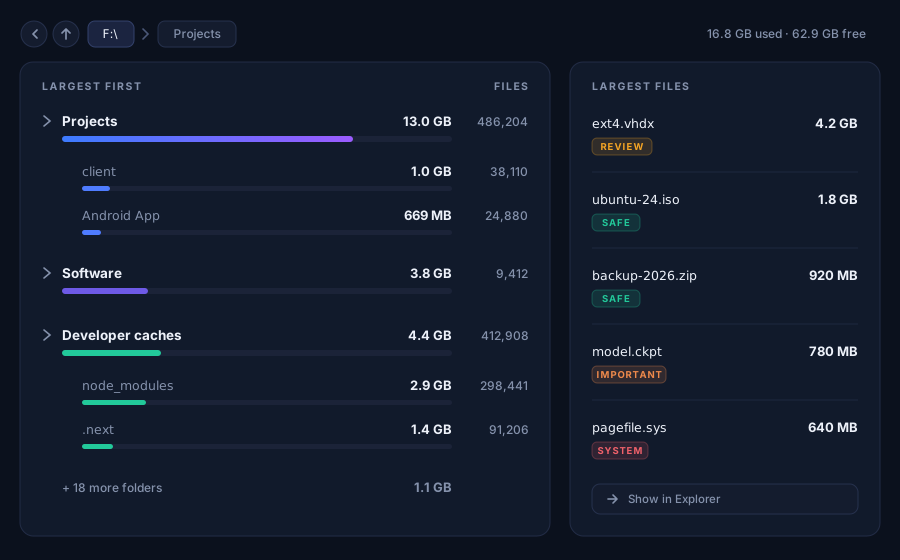
The classic recursive drill-down, largest first, with per-folder size bars and file counts so you can walk the tree the way you think about it.
A bounded top-N list of your biggest files with a size threshold filter, a risk chip on each row, and “show in Explorer” to jump straight there.
Multi-threaded, cancellable and pausable, with real running totals rather than a
fake percentage. Bounded memory, so a node_modules tree with millions of
files does not take the app down. Junctions and symlinks are skipped - no loops,
no double-counting.
Export any scan as CSV, JSON, or a styled HTML report that prints cleanly to PDF - useful when you have to justify a disk upgrade to someone.
Sorted largest-first at every level, with a size bar and a real file count on each row. When you would rather skip the walk, the Large Files view lists the biggest individual files on the drive with a risk label on each one.
Temp files, Recycle Bin, DirectX shader cache, crash dumps, Windows Update and Delivery Optimization caches, plus Chrome, Edge, Brave and Firefox web caches - each sized live and labelled with its risk. Cache folders are cleared, never deleted.
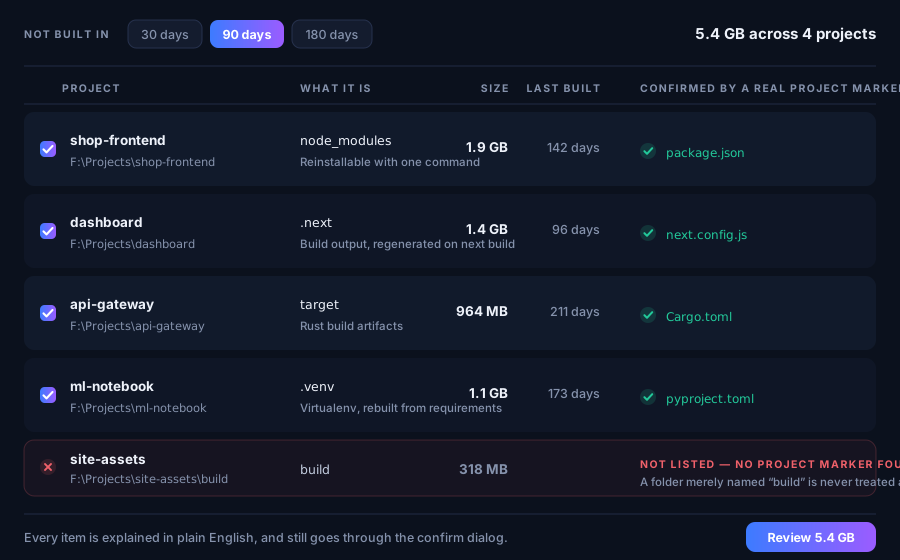
Walks the scan tree for node_modules, build output
(.next, dist, build, target,
bin, obj), tool caches and virtualenvs - each confirmed by
a live project-marker check, so a random build/ is never flagged.
Select by age (30 / 90 / 180 days) with per-project sizes.
Size bucket → partial hash → full SHA-256 confirmation, so a “duplicate” really is byte-identical. Results are grouped with a keep-one default selection and go through the same confirmation dialog as everything else.
Reads image, container, volume and build-cache sizes plus reclaimable space, and reclaims through Docker's own prune. Volumes are opt-in and warned. DriveXos never deletes Docker's AppData directly, and degrades gracefully when Docker is off.
Lists your distributions and the real size of each ext4.vhdx.
Strictly read-only-it will never delete a virtual disk - with safe compaction
guidance instead.
Sizes AppData per application, descending into vendor folders so the results read as apps you recognise - Chrome, Edge, VS Code, Docker - rather than opaque GUIDs.
A folder called build is not evidence of anything. Before DriveXos will
even list a candidate it looks for the marker file that proves a real project sits
above it - and quietly skips anything that fails the check.
There is no second code path. Whatever tool proposed a file, the cleanup engine re-checks it against the safety engine at execution time and assigns it a risk level before anything happens.
.ssh, .env, keys, certificates, databases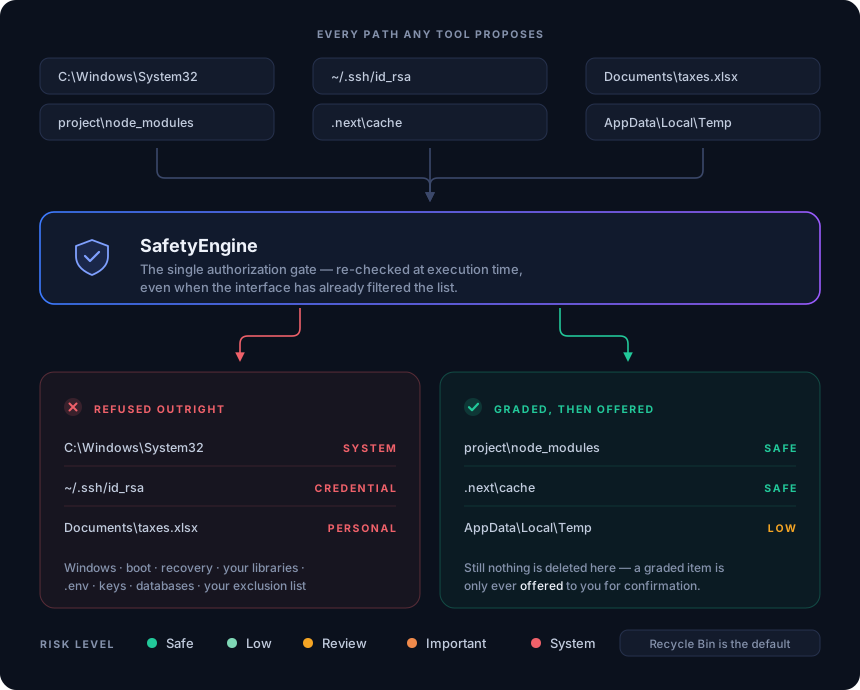
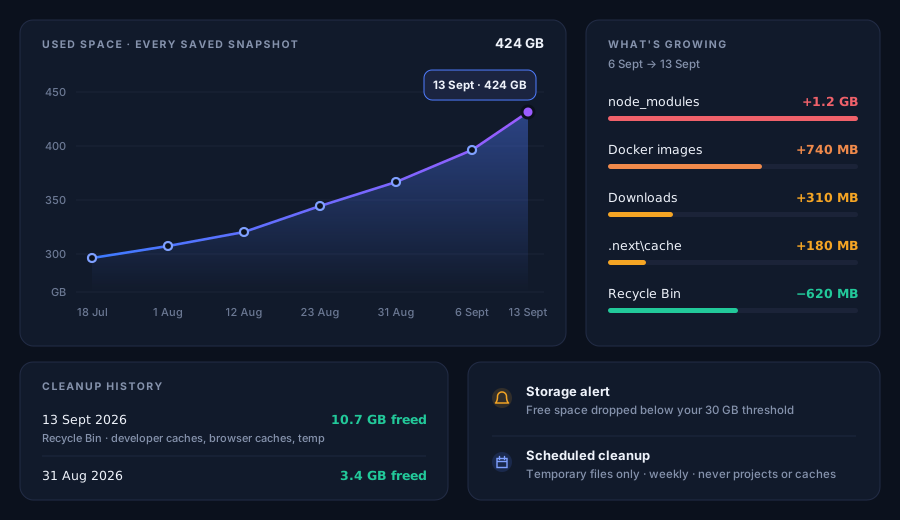
Every scan is saved locally as a snapshot and charted over time, with a diff of the two latest scans that tells you exactly what grew.
Every cleanup is recorded - date, amount freed, method and categories - on its own page.
A background watcher raises a tray notification when free space drops below your own GB or percentage thresholds.
Optional automatic clearing of temporary files only on an interval. Never projects, never caches, never anything risky.
DriveXos also lives in your system tray with a quick menu - open, quick scan, storage status, clear temp files, settings - plus Light, Dark and System themes, and an exclusion list that feeds directly into the safety engine.
Install it, run one scan, and see what it finds. Upgrade later if the developer tools earn it.