
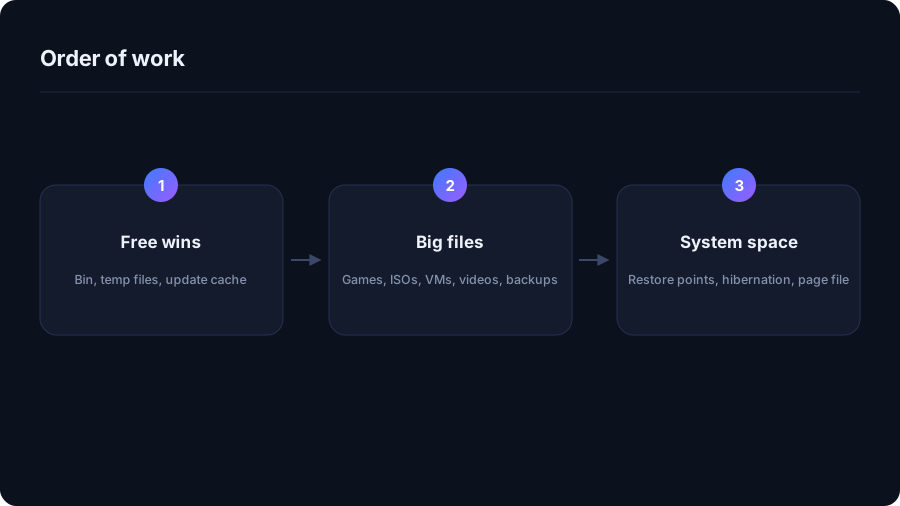
1. The free wins
Empty the Recycle Bin, clear %TEMP%, and run Windows Update cleanup. On a machine
that has been running for a year this is commonly 5–15 GB and carries no risk beyond
losing the ability to roll back installed updates.
2. Find the actual weight
Now scan, before touching anything system-related. Nine times out of ten the missing space is a small number of large items: a game library, virtual machine disks, an old phone backup, a folder of video, or downloads nobody sorted. Deleting one 40 GB item solves the problem that no amount of cache clearing would have.
Move before you delete
Large media and archives do not have to live on C:. Moving them to a second
drive or external disk frees exactly the same space as deleting them, and you keep the files.
3. OneDrive and cloud folders
If OneDrive is syncing everything locally, Files On-Demand turns the local copies into placeholders that download when opened. Right-click a folder and choose Free up space. On a heavily synced account this alone can be tens of gigabytes, and nothing is lost — the files stay in the cloud.
4. Windows.old
After a feature update, the previous installation sits in C:\Windows.old, often
15–25 GB, and Windows removes it automatically after ten days. Removing it early means you
cannot go back to the previous version. Use Settings → System → Storage → Temporary
files rather than deleting the folder by hand, which will fail on permissions anyway.
5. System space, carefully
- Restore points can hold many gigabytes. Check and cap the allowance with
vssadmin list shadowstorage; reduce it rather than disabling protection entirely. - Hibernation reserves
hiberfil.sys, typically around 40% of your RAM. Turning it off frees that immediately but disables fast startup and hibernate. - The page file is managed by Windows and is best left alone. Moving it to another drive is reasonable; shrinking it to nothing is not.
# How much restore points are allowed to hold
vssadmin list shadowstorage

# Reclaim the hibernation file (disables hibernate and fast startup)
powercfg /hibernate off

# Shrink the component store the supported way
DISM /Online /Cleanup-Image /StartComponentCleanup
What to leave alone
C:\Windows\System32,WinSxSby hand, and driver stores.- Program folders for software you still use — uninstall properly instead.
- Anything a web page tells you to delete without explaining what it is.
If the drive fills again within weeks, something is generating it: virtual machine snapshots, a logging application, a game shader cache, or build output. Comparing two scans is the quickest way to see what grew.
A realistic worked pass
| Step | Typical recovery | Risk |
|---|---|---|
| Recycle Bin and temp files | 2–8 GB | None |
| Windows Update cleanup | 3–10 GB | Cannot uninstall those updates |
| Old downloads and installers | 2–40 GB | None, once checked |
| Games you have finished | 30–300 GB | Re-download to play again |
| OneDrive Files On-Demand | 5–100 GB | Needs a connection to reopen files |
Windows.old | 15–25 GB | No rollback to the previous version |
| Restore point cap | 5–30 GB | Fewer restore points kept |
| Hibernation off | ~40% of RAM | No hibernate or fast startup |
When the drive fills again in a fortnight
Something is producing data. The usual suspects, in rough order of frequency:
- Virtual machines and WSL. Their virtual disks expand but never shrink on their own.
- Docker Desktop. Images and build cache accumulate until pruned.
- Game shader caches and updates. Some titles rewrite gigabytes weekly.
- Logging. A misconfigured application can write tens of gigabytes of logs a month.
- Sync clients pulling down a shared folder somebody else keeps adding to.
- Restore points, re-created after every update.
Two scans a week apart identify the culprit in minutes: sort by size, compare, and the folder that moved is your answer.
One thing not to do
Do not run a registry cleaner or a "one-click PC booster" because the drive is full. They do not free meaningful space, and the ones that do delete aggressively are exactly the ones you do not want making decisions about your files.
If the drive is genuinely too small
On a 128 GB or 256 GB laptop, Windows plus Office plus a few applications can occupy most of the disk before you store anything at all. At that point cleanup is maintenance, not a fix: move documents and media to an external or cloud location, keep the system drive for the system, and accept that a quarterly tidy is part of the deal.
Quick answers
What should I delete first when my C: drive is full?
The Recycle Bin, your temp folder and the Windows Update cache. They are risk-free and usually worth several gigabytes. Then scan for large files before touching anything system-related.
Is it safe to delete the Windows.old folder?
Yes, but you lose the ability to roll back to the previous Windows version. Remove it through Settings → System → Storage → Temporary files rather than deleting it manually.
Should I disable hibernation to free space?
It frees roughly 40 percent of your RAM size, but you lose hibernate and fast startup. On a desktop that is often an easy trade; on a laptop, think twice.
Recycle Bin, Trash, and the Deletions You Cannot Undo →
See where your space actually went
DriveXos scans a drive in seconds, shows every folder by size, and removes only what you tick — on Windows and Mac, free to use.