
What "temporary" actually means on Windows
A temporary file is one that Windows or an application can recreate. Installers unpack into
%TEMP%, Windows Update keeps downloaded packages after installing them, and
Explorer caches a thumbnail for every picture you have ever looked at. None of this is
cleaned up aggressively, because disk space used to be cheaper than the risk of deleting
something mid-install.
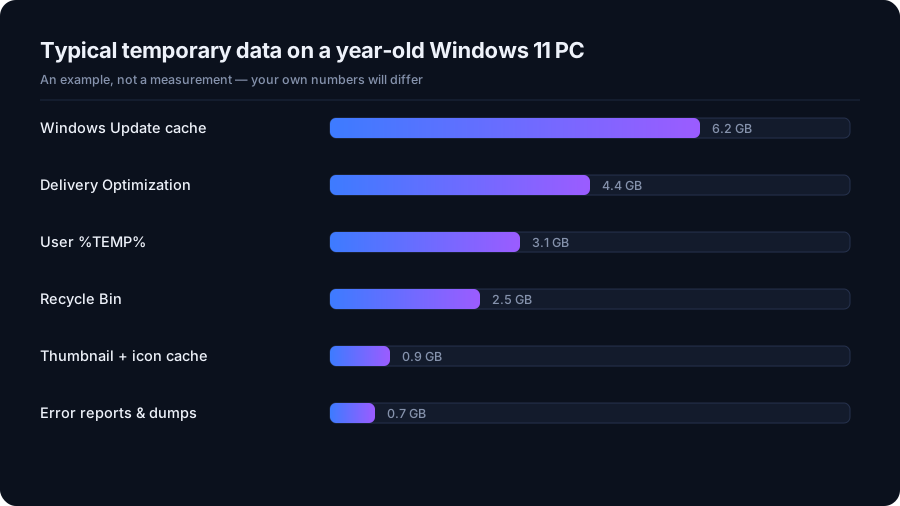
The result on a typical machine after a year is somewhere between 5 GB and 20 GB of files that serve no further purpose.
Safe to delete, and it stays deleted
- Your user temp folder —
%TEMP%, which isC:\Users\<you>\AppData\Local\Temp. Files in use are locked and simply skip; everything else goes. - The system temp folder —
C:\Windows\Temp. Same idea, for services. - Delivery Optimization files — update chunks kept to share with other PCs on your network. Windows re-downloads whatever it needs.
- Windows Update cleanup — installed update packages kept for rollback. Clearing them means you cannot uninstall those updates afterwards, which is the trade-off.
- The Recycle Bin — obvious, but it is the single biggest win on most machines.
- Thumbnail and icon caches — rebuilt on demand. Folders look slow for a few seconds the first time you open them afterwards.
The 60-second version
Empty the Recycle Bin, clear both temp folders, and run Windows Update cleanup. On most computers that is 80% of the space you were going to recover, and none of it is risky.
Leave these alone
C:\Windows\WinSxS— it looks enormous in Explorer because most of it is hard links counted twice. Deleting from it by hand breaks Windows. UseDISMinstead, as below.C:\Windows\System32andProgram Files— never a cleanup target, whatever a forum post says.- Prefetch — a few hundred megabytes that make your apps start faster. Clearing it buys almost nothing and slows the next few launches.
- Your Downloads folder — technically disposable, genuinely not. Cleanup tools that empty it without asking are the reason people distrust cleanup tools.
Doing it from the command line
Windows ships two safe built-in options. The component cleanup is the one worth knowing,
because it is the only supported way to shrink WinSxS.
# Remove superseded component versions from WinSxS
DISM /Online /Cleanup-Image /StartComponentCleanup

# Clear your own temporary folder
Remove-Item "$env:TEMP\*" -Recurse -Force -ErrorAction SilentlyContinue
Storage Sense, under Settings → System → Storage, automates the safe subset on a schedule. It is conservative by design: it will not touch anything under your user folders unless you explicitly switch that on.
Why a scan beats a checklist
The list above is the common case. The gigabytes that actually surprise people are somewhere else entirely — a forgotten virtual machine, a game you finished in 2024, an iPhone backup, a folder of camera footage. That is the argument for looking at the drive before you clean it, rather than clearing caches and hoping.
Where the space actually hides on Windows
Cleaning caches is the easy part, and on most machines it is not the answer. These are the locations that hold real weight, in the order they are usually worth checking:
| Location | What lives there | Typical size |
|---|---|---|
C:\Users\<you>\Downloads | Installers, ISOs, archives nobody sorted | 2–50 GB |
| Steam, Epic, Xbox libraries | Games, shader caches, DLC | 50–500 GB |
%LOCALAPPDATA%\Packages | Store app data and caches | 1–20 GB |
| Hyper-V / WSL / VirtualBox disks | Virtual machine images that only ever grow | 20–200 GB |
C:\Windows.old | The previous Windows install after an upgrade | 15–25 GB |
| OneDrive local copies | Cloud files pinned to the device | Anything |
Why Disk Cleanup under-reports
The built-in Disk Cleanup tool only knows about categories Microsoft defined for it. Everything above is invisible to it: it will not mention your virtual machine disks, your game library or a 30 GB folder of drone footage. That is not a flaw so much as a scope decision — it cleans Windows, not your files. Any real answer to "where did my space go" has to look at the whole drive, including the parts no cleanup tool is allowed to touch.
Keeping it from filling up again
- Turn on Storage Sense and let it empty the Recycle Bin and temp files on a schedule. Leave the "delete files in my Downloads folder" option off unless you really mean it.
- Move the libraries that grow. Steam supports a second library folder on another drive; so does Hyper-V, WSL and most editing software.
- Use OneDrive Files On-Demand so cloud files are placeholders until you open them.
- Check once a quarter, not once a crisis. Two scans a few weeks apart show you what is growing, which is far more useful than a single snapshot taken when the drive is already full.
Quick answers
Is it safe to delete everything in the Windows temp folder?
Yes. Files currently in use are locked and skipped automatically, and everything else is rebuilt by Windows or the application that needed it. Do not delete the folder itself, only its contents.
Will deleting temp files speed up my PC?
Not noticeably. It frees space, which matters if your drive is nearly full, but temporary files do not slow a modern SSD down on their own.
How often should I clear temporary files?
Every few months is plenty for most people, or let Storage Sense do it automatically. There is no benefit to clearing them weekly.
See where your space actually went
DriveXos scans a drive in seconds, shows every folder by size, and removes only what you tick — on Windows and Mac, free to use.