
Why the grey block grows
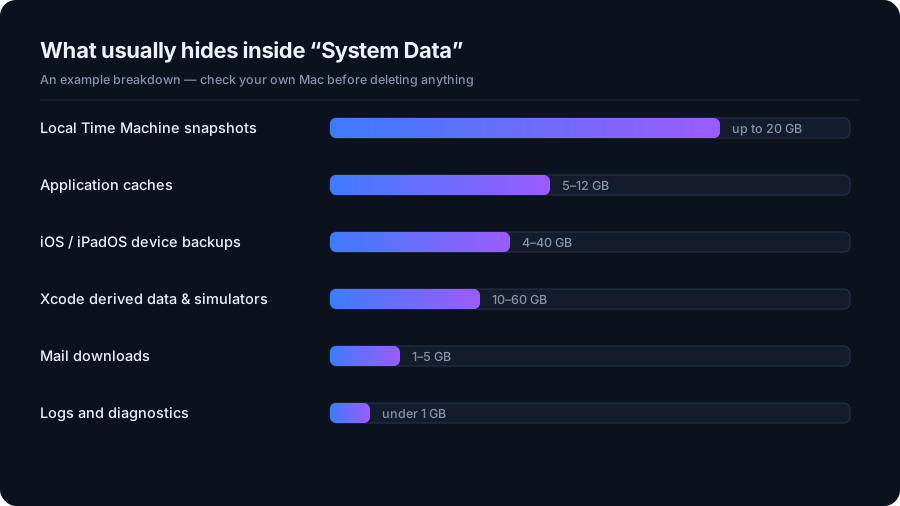
About This Mac → Storage sorts files into Apps, Documents, Photos and so on. Anything that does not fit a category — caches, snapshots, virtual machine images, container data, developer tooling — lands in System Data. On a developer's Mac it routinely passes 100 GB.
Local Time Machine snapshots: the usual culprit
macOS keeps hourly APFS snapshots on the internal drive, even when your backup disk is nowhere near. They are marked purgeable, so macOS deletes them automatically when space runs short — which is why your free space sometimes jumps by 15 GB the moment you copy a large file.
# List the local snapshots on your startup disk
tmutil listlocalsnapshots /

# Ask macOS to reclaim roughly 20 GB from them (urgency 4 = most aggressive)
sudo tmutil thinlocalsnapshots / 21474836480 4
Purgeable is not wasted
If the storage bar says a large amount is purgeable, you already have that space — macOS will release it when something needs it. Deleting snapshots by hand only matters when you need the room right now, or when you are measuring the drive.
Caches
~/Library/Caches holds per-application caches: browser data, streaming buffers,
package manager downloads, design tool previews. Clearing a cache costs you nothing but a
slower first launch. Clearing /Library/Caches (the system one) is rarely worth
the risk, and macOS guards much of it anyway.
iPhone and iPad backups
Every local device backup sits in
~/Library/Application Support/MobileSync/Backup and is as large as the phone was
when it was made. Two old phones and you have lost 60 GB. Delete them from
Finder → your device → Manage Backups rather than by hand, so the index stays
consistent.
Developer files
If Xcode is installed, four folders dominate: ~/Library/Developer/Xcode/DerivedData,
iOS DeviceSupport, old simulator runtimes, and archives. Derived data is pure
build output and rebuilds on demand.
# Build output — safe to remove, rebuilt on the next build
rm -rf ~/Library/Developer/Xcode/DerivedData/*

# Simulators for runtimes you no longer have installed
xcrun simctl delete unavailable
What not to delete
- Anything inside
/System— it is on a sealed, read-only volume for a reason. ~/Library/Containerswholesale — that is live application data, not cache. Deleting a container resets the app and can lose its documents.- Photos library packages — never treat
.photoslibraryas a folder.
DriveXos shows these areas as ordinary folders with real sizes, so you can see which one is actually responsible before touching anything — how to read the drive takes about a minute.
Measuring before deleting
Finder will not tell you how large a hidden folder is, and the storage bar rounds everything into coloured blocks. Two commands give you the real numbers, and both are read-only:
# The biggest folders in your Library, largest last
du -sh ~/Library/* 2>/dev/null | sort -h | tail -15

# Real free space, including what is purgeable
df -h /System/Volumes/Data
If df reports far more free space than Finder does, the difference is purgeable:
snapshots and caches macOS will release on demand. That is the single most common reason a Mac
"loses" 20 GB overnight and gets it back the moment you try to copy a film.
The folders worth knowing by name
| Path | What it holds | Safe to clear? |
|---|---|---|
~/Library/Caches | Per-app caches | Yes — apps rebuild them |
~/Library/Application Support/MobileSync/Backup | iPhone and iPad backups | Yes, via Finder |
~/Library/Developer/Xcode/DerivedData | Build output | Yes |
~/Library/Containers | Live app data and documents | No |
~/Library/Mail | Message store and attachments | No — manage from Mail |
/System | The sealed system volume | No, and macOS will refuse |
Apple silicon, Intel, and why it does not matter here
None of this differs between an M-series Mac and an Intel one: both use APFS, both keep local snapshots, both hide the same folders. What does differ is the size of the drive people bought. A 256 GB MacBook Air feels the pressure of a 20 GB snapshot set in a way a 2 TB Mac Studio never will, which is why the smaller the Mac, the more worthwhile it is to look at System Data properly rather than guess.
Quick answers
Why is System Data so large on my Mac?
Usually local Time Machine snapshots, application caches, iPhone backups and developer build output. macOS groups everything it cannot categorise under System Data, so the block grows quietly over months.
Is it safe to delete local snapshots on a Mac?
Yes, for snapshots on the internal drive. They are convenience copies, not your Time Machine backup, and macOS deletes them automatically when space runs low.
What is purgeable space on macOS?
Space held by files macOS can remove itself when something needs the room, mainly snapshots and caches. It counts as used in Finder but is effectively available.
Windows Temp Files: What Is Safe to Delete in 2026 →
See where your space actually went
DriveXos scans a drive in seconds, shows every folder by size, and removes only what you tick — on Windows and Mac, free to use.