
Start with shape, not numbers
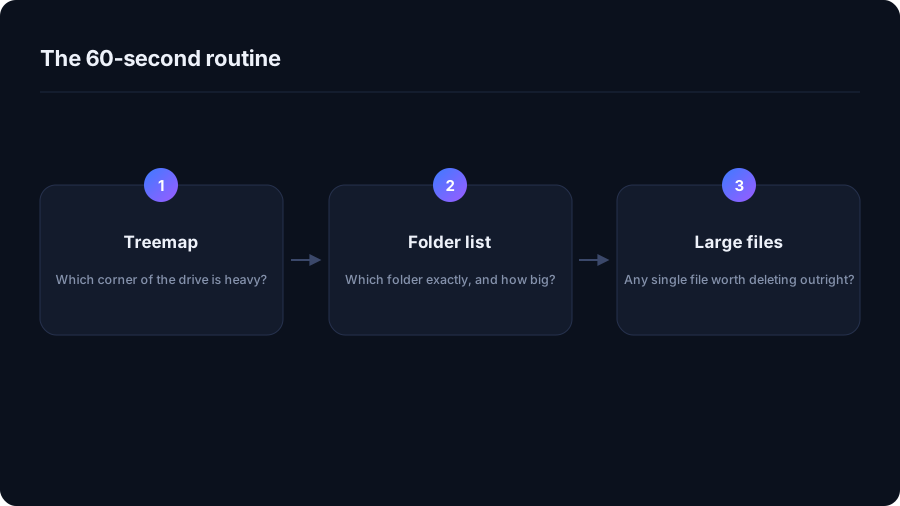
A treemap draws every folder as a rectangle sized by the space it occupies. You are not reading it, you are glancing at it: one or two blocks dominate, and those are the only ones worth your attention. Click into the biggest, look again, repeat. Three or four clicks is usually enough to land on the folder that explains your missing space.
The rule of thumb
If a folder is not visible in the treemap, it cannot solve your problem. Freeing 200 MB when you need 40 GB is a waste of an afternoon.
Switch to the list when you need certainty
Rectangles are bad at precision. Once you know roughly where the weight is, a folder list sorted largest-first tells you exactly how much each one holds, how many files are inside, and when they were last touched. That last column matters: a 12 GB folder nobody has opened since 2024 is a very different decision from a 12 GB folder you wrote to this morning.
Then check the single biggest files
Some drives are not full of many files at all. They are full of nine of them: an ISO, a couple of virtual machine disks, a video export, an old database dump. A largest-files view finds those in one pass and often ends the job on its own.
Why the numbers never quite add up
- Size versus size on disk. Filesystems allocate in blocks, usually 4 KB. Fifty thousand tiny files take far more room than their contents suggest.
- Hard links and clones. The same data can appear in two places and be counted twice.
WinSxSon Windows and APFS clones on macOS both do this. - Snapshots and shadow copies. Space held by the system, invisible in a normal scan.
- Permissions. Folders a scan cannot read are folders it cannot measure.
A good analyzer tells you when it skipped something rather than quietly under-reporting.
Finish by deciding, not deleting
Scanning answers "where did it go". What you do next — archive, move to an external drive, uninstall, or delete — is a judgement call that depends on the folder. The one habit worth keeping: never delete anything you have not first looked at in a preview. Cleaning up safely covers how that works in DriveXos.
A worked example
A 512 GB laptop reports 9 GB free. The treemap shows one huge block: the user folder.
Clicking in, two children dominate — AppData and Videos. Inside
AppData, a single Packages subfolder holds 40 GB, most of it one
streaming app's offline downloads. Videos turns out to be 120 GB of screen
recordings from a project that shipped last year.
Four clicks, two decisions, 160 GB recovered — and not one temporary file involved. That shape of result is the norm, not the exception.
Sort by size, then by age
Size tells you what matters; the last-modified date tells you what is safe. A large folder nobody has written to in a year is the easiest decision you will make all day.
Reading the colours and the labels
- Many tiny rectangles in one area mean thousands of small files — a dependency folder, a cache, a mail store. The total is what matters, not the individual files.
- One large rectangle is a single file: a disk image, a video, a database, a virtual machine. These are the fastest wins.
- A block that will not open is usually a permissions boundary — another user's profile, or a system area. Its size may be an estimate.
Scan once, then compare
A single scan tells you where you are. Two scans a fortnight apart tell you where you are going, which is the more useful answer when a drive keeps refilling. Growth almost always has a single cause: snapshots, logs, a sync client, a build server, or a game that updates weekly. Finding that cause once beats cleaning the same folders every month.
Quick answers
What is the fastest way to find what is using my disk space?
Open a treemap of the whole drive, click into the largest block two or three times, then switch to a folder list to confirm the exact size. Most full drives are explained by one or two folders.
Why does my disk analyzer show a different total to Windows or Finder?
Because of block allocation, hard links, clones, snapshots and folders the scan cannot read. Small differences are normal; large ones usually mean snapshots or permissions.
How Much Free Space Does an SSD Actually Need? →
See where your space actually went
DriveXos scans a drive in seconds, shows every folder by size, and removes only what you tick — on Windows and Mac, free to use.