
Why a full SSD gets slow
Flash memory cannot overwrite data in place. It writes in small pages but can only erase in much larger blocks, so changing one file means copying good data elsewhere and erasing whole blocks — an effect called write amplification. When the drive has plenty of empty blocks, the controller does that work in the background and you never notice. When it does not, the cleanup has to happen while you wait.
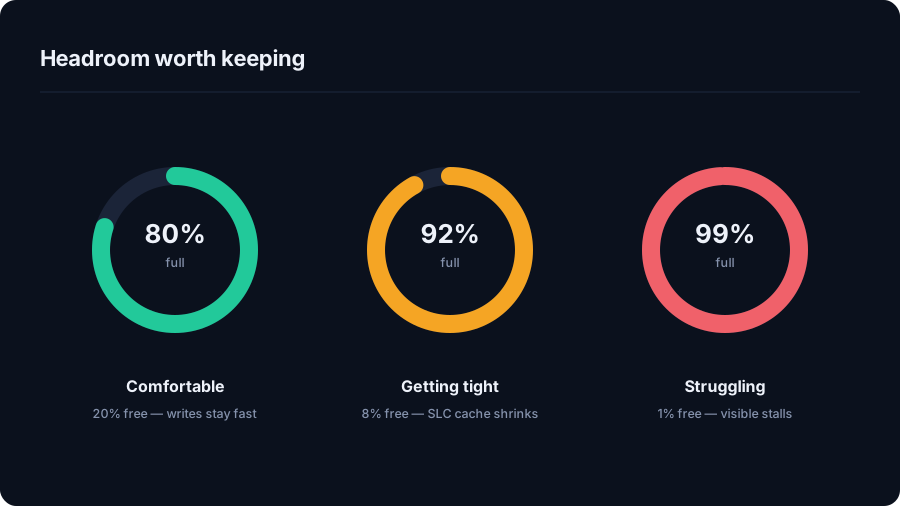
Most consumer SSDs also use part of their free area as a fast write cache, treating flash cells as single-bit for speed. That cache shrinks as the drive fills. A drive that writes at multiple gigabytes per second when half empty can drop to a fraction of that when nearly full.
A practical target
Keep roughly 10–20% of the drive free. Below 10% you are into the range where writes slow down and the operating system starts complaining; above 20% you are unlikely to gain anything measurable by freeing more.
What the operating system needs the space for
- Windows — the page file, system restore points, update staging, and hibernation all want room. Windows Update in particular can fail outright on a very full drive.
- macOS — swap, local snapshots, and the space updates unpack into. macOS reclaims purgeable space automatically, but it needs somewhere to work.
Habits to drop
- Do not defragment an SSD. There is no seek penalty to optimise away, and it burns write cycles. Windows already runs a TRIM-based optimisation on a schedule, which is not the same thing and is fine to leave on.
- Do not chase "optimiser" utilities. Anything promising a faster SSD through registry tweaks is selling something.
- Do not obsess over write endurance. Modern drives are rated for hundreds of terabytes written. Normal use will not exhaust that before the machine is replaced.
Getting the headroom back
Freeing 10% of a 512 GB drive means finding 50 GB, which is rarely about temporary files. It is usually one of: virtual machines, game installs, video, old device backups, or — on a developer machine — build output. Scan first, then decide; reading a drive in 60 seconds is the short version of how.
What changes as a drive fills
| Free space | What you notice | What to do |
|---|---|---|
| Above 20% | Nothing. The drive behaves as advertised | Carry on |
| 10–20% | Large copies slow down a little | Fine, but keep an eye on it |
| 5–10% | Sustained writes drop noticeably; updates get fussy | Free some space this week |
| Under 5% | Stalls during writes, failed updates, swap pressure | Free space now |
Where the numbers come from
Every drive already reserves some capacity you cannot see — spare blocks for wear levelling and the mapping tables. That is why a "1 TB" drive presents about 931 GB. Leaving user space free on top of that gives the controller room to consolidate partially used blocks in the background rather than mid-write, and keeps the fast single-bit write cache large enough to absorb bursts.
The exact thresholds vary by model and by how full the drive has been over its life, which is why the advice is a range rather than a number. What is consistent is the shape of the curve: flat for most of the drive's capacity, then a sharp drop near the end.
External SSDs and USB sticks
Cheap external flash often has little spare area and no effective TRIM over USB. They slow down earlier and recover less well, so leave more headroom on a portable drive than on the one inside your machine.
Checking your own drive
On Windows, Settings → System → Storage shows the split by category, and
Optimize-Volume -DriveLetter C -ReTrim issues TRIM manually if you want to be sure
it has run. On macOS, About This Mac → Storage plus df -h gives the same
picture including purgeable space. Both are starting points: to know which folder is
responsible you still need to look at the whole drive.
Quick answers
How much free space should I leave on an SSD?
About 10 to 20 percent of its capacity. Below 10 percent writes slow down noticeably and the operating system has less room for swap, updates and snapshots.
Does a full SSD really slow down?
Yes. With few empty blocks the controller must erase and rearrange data while you wait, and the drive's fast write cache shrinks. The effect is most obvious on large file copies.
Should I defragment an SSD?
No. Defragmentation exists to reduce seek time on spinning disks and only adds wear on flash. Leave the built-in scheduled optimisation, which issues TRIM, switched on.
See where your space actually went
DriveXos scans a drive in seconds, shows every folder by size, and removes only what you tick — on Windows and Mac, free to use.