
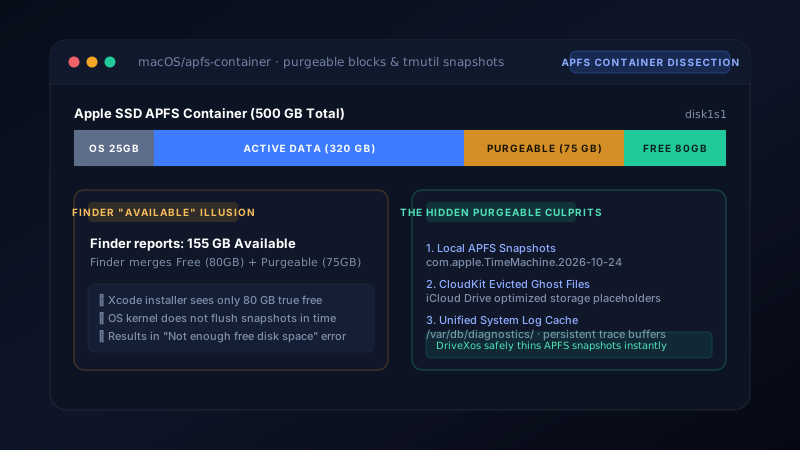
The Semantic Illusion: Available vs Free Space
The confusion stems from a subtle design choice introduced with the Apple File System (APFS) in macOS High Sierra.
In modern macOS (Sonoma, Sequoia, and newer), Finder does not display True Free Space. Instead, it displays Available Space:
Available Space = Truly Free Unallocated Disk Blocks + Purgeable SpaceApple defines Purgeable Space as disk sectors containing files that macOS can hypothetically delete when the disk is under severe storage pressure.
However, disk space allocation APIs (such as POSIX statvfs, low-level binary installers, package managers, and game engines) query the raw volume cluster free count. If your 512 GB SSD has only 18 GB of truly free space and 62 GB of purgeable space, Finder will happily show "80 GB Available"—yet any installer requesting 30 GB will fail immediately.
What "Purgeable Space" Actually Contains
Contrary to common belief, purgeable space is not just temporary browser cookies. In an APFS container, purgeable storage consists of four distinct system components:
| Component | Origin | How It Holds Disk Blocks |
|---|---|---|
| Local APFS Snapshots | Time Machine | Point-in-time copy-on-write (COW) container freeze. Prevents deleted files from freeing disk sectors until the snapshot is pruned. |
| iCloud Drive Eviction Stubs | CloudKit Daemon | Files marked as "Optimize Mac Storage". The raw payload remains on disk until memory/disk pressure thresholds trigger eviction. |
| OS Asset Cache & Font Staging | Software Update / CoreServices | Pre-staged system update payloads, Rosetta 2 translation caches, and downloaded Siri voices. |
| Unified Log Trace Buffers | /var/db/diagnostics/ |
Kernel circular trace buffers for debugging and telemetry. |
Why macOS Fails to Evict Purgeable Space Automatically
Apple's engineering logic assumes the kernel will automatically purge these files "just in time" as you write new data. In practice, this mechanism breaks down in three scenarios:
- Atomic Pre-flight Allocation Checks: Installers (like Xcode, Docker Desktop, or Homebrew) check for contiguous free space before initiating write operations. Because they do not write yet, no storage pressure is created, and macOS never triggers the eviction routine.
- Stale Time Machine Local Snapshots: If your Mac is configured to back up to an external USB drive or network NAS that is not plugged in, macOS silently generates a local APFS snapshot every 60 minutes. Even if you delete a 40 GB video folder, zero disk space is recovered because the snapshot references those same physical blocks!
- Eviction Priority Inversion: The kernel prioritizes keeping iCloud local files cached over allowing third-party apps to claim storage headroom.
Auditing APFS Snapshots via Terminal
You can inspect the real state of your drive in Terminal without relying on Finder's rounded estimates:
# 1. Inspect true free vs purgeable bytes:
diskutil apfs list

# 2. List all local Time Machine snapshots holding deleted data:
tmutil listlocalsnapshots /

# Output example:
# com.apple.TimeMachine.2026-10-24-110243.local
# com.apple.TimeMachine.2026-10-24-121509.local
# com.apple.TimeMachine.2026-10-24-133045.local
If you have multiple snapshots listed above, every large file you dragged to the Trash over the last 24 hours is still physically pinned to your SSD sectors.
How DriveXos Directly Reclaims APFS Headroom
Rather than requiring complex shell scripts or terminal commands, DriveXos on macOS provides a native, zero-risk purgeable reclamation pipeline:
- Transparent Drive Separation: DriveXos explicitly displays both True Free Storage and Purgeable Snapshot Overhead on the dashboard so you are never deceived by Finder's optimistic rounding.
- Safe Snapshot Thinning: Invokes the native Apple DiskManagement and Time Machine interfaces to thin local snapshots safely without compromising active backups.
- Cache & Log Eviction: Flushes completed system staging buffers and orphaned CloudKit placeholders in compliance with macOS SIP (System Integrity Protection) boundaries.
Once thinned, your true free storage instantly matches your available storage, allowing Xcode, Android Studio, and system updates to install without obstruction.