
From a category to a visual picture
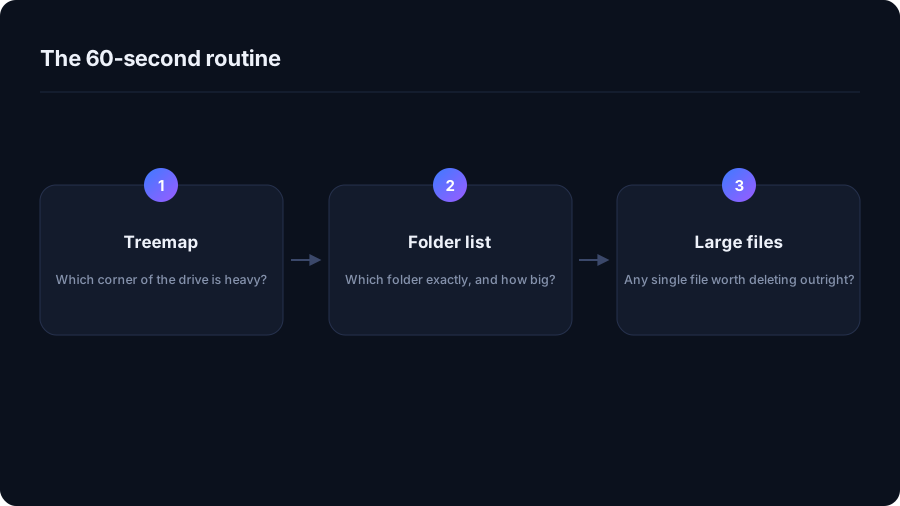
System Data is a broad macOS category rather than one folder with a complete, removable set of files. DriveXos helps investigate the underlying storage with a visual treemap: larger blocks represent larger areas of the scanned filesystem.
That view makes uneven usage easier to recognise. A single application-related folder or a cluster of old projects can stand out immediately, giving a more concrete explanation of where accessible disk space is going.
Detail behind the biggest areas
The Storage Analyzer adds folder names, size bars and file counts to the picture. Its largest-first ordering helps explain which parts of a folder contribute most to its total. The Large Files view complements that breakdown by focusing on individual files.
This is especially useful when the Mac contains a mixture of personal files, application data and developer projects. DriveXos helps make their relative sizes understandable without requiring a manual comparison of every folder.
Visibility that supports a decision
DriveXos can present supported Mac cleanup categories, including caches, logs and temporary files, for review. The analysis explains what takes space; the cleanup preview explains what is proposed for removal. Those are separate pieces of information, and both are useful.
The app’s scan is a view of accessible filesystem data, not a reproduction of Apple’s category accounting. Some storage is managed by macOS or restricted by permissions, so its totals may differ from System Data. DriveXos is useful for understanding the folders it can inspect and identifying potential cleanup candidates within that view.
A clearer view of your storage
Disk analysis, visual folder sizes and a cleanup preview that keeps you in control.