
Clarity before cleanup
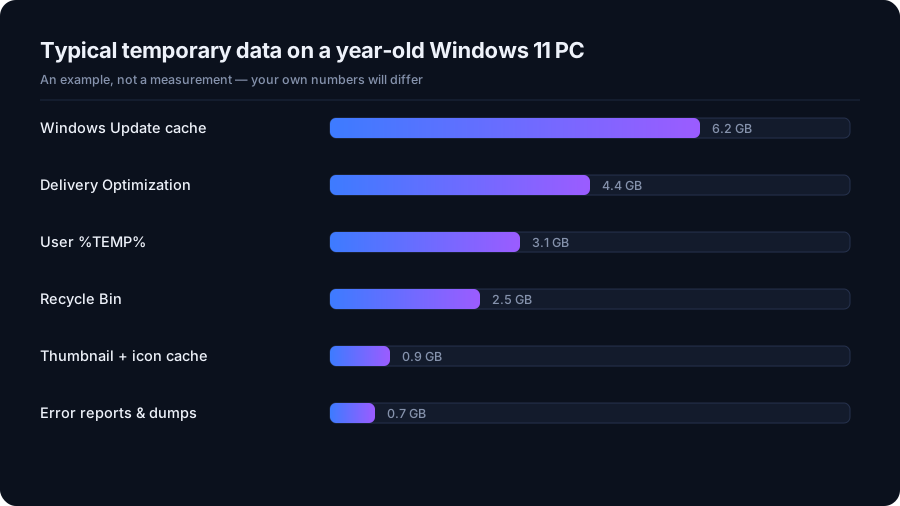
A folder labelled Temp does not explain which files still matter to an application. DriveXos helps by showing cleanup candidates and their sizes before removal, so temporary-file cleanup is based on a visible selection rather than the assumption that everything in a folder is disposable.
Its cleanup tools cover Windows temporary files alongside other supported categories. That context matters when the aim is to recover disk space: temporary data may be part of the problem, while a forgotten download or a large project accounts for much more.
A preview that keeps you in control
DriveXos shows what is selected for cleanup and the space those items occupy. Risk information and confirmation make the proposed removal easier to understand. Scanning and deletion are separate actions, so finding temporary files does not automatically remove them.
The safety engine checks cleanup targets and protects important system locations. These safeguards support a more careful cleanup experience, without implying that every temporary file on every Windows 11 computer is always safe to delete.
Useful even when Temp is not the main problem
The Storage Analyzer and treemap show temporary storage in the wider picture of the drive. The Large Files view can reveal bulky files elsewhere, helping explain why a computer may still have limited free space even when its temporary-file total is small.
DriveXos combines this visibility with a review before cleanup. Its main benefit is confidence about what is being considered for removal and why it matters to storage, while the final selection remains under your control.
A clearer view of your storage
Disk analysis, visual folder sizes and a cleanup preview that keeps you in control.