
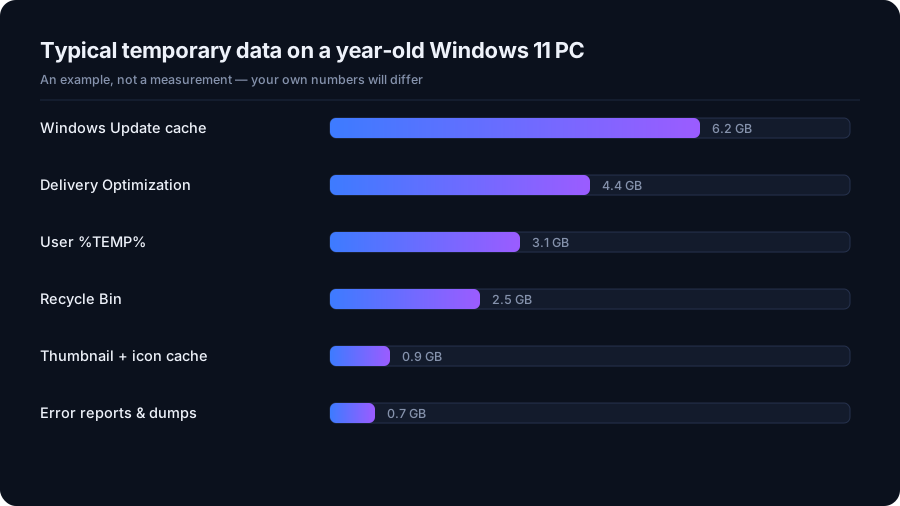
Putting temporary storage in perspective
Temporary storage can be easy to blame when a Windows drive is full. DriveXos helps test that assumption by showing folder sizes and the distribution of disk usage. Temporary data appears in context alongside downloads, applications and other files.
The visual treemap highlights larger areas, while the Storage Analyzer provides a folder breakdown. That combination helps explain whether temporary storage deserves attention or whether a much larger folder elsewhere is driving the low-space problem.
A clearer view of cleanup candidates
DriveXos includes Windows temporary-file cleanup among its supported categories. Its preview shows proposed items and their sizes before removal, making it easier to understand the scope of a cleanup. Risk information adds context beyond a folder name or a byte count.
The app keeps scanning separate from deletion. A storage investigation can therefore remain an investigation until you authorise cleanup. That distinction is useful when the goal is simply to understand a growing Temp folder.
Beyond a single folder
A computer may also contain large downloads, duplicate content and development dependencies that compete for the same free space. DriveXos provides large-file discovery and additional cleanup tools for these different sources of storage use.
Its benefit is a connected view: where space is going, which supported items are candidates for cleanup, and what the proposed removal includes. For the Windows Temp folder, that means clearer information and a review before deletion, rather than an assumption that its full size is guaranteed recoverable space.
A clearer view of your storage
Disk analysis, visual folder sizes and a cleanup preview that keeps you in control.