
User guide · 8 of 9
Activate your licence key
Premium is bought once and kept for good. Your key arrives by email and begins with DXOS1.
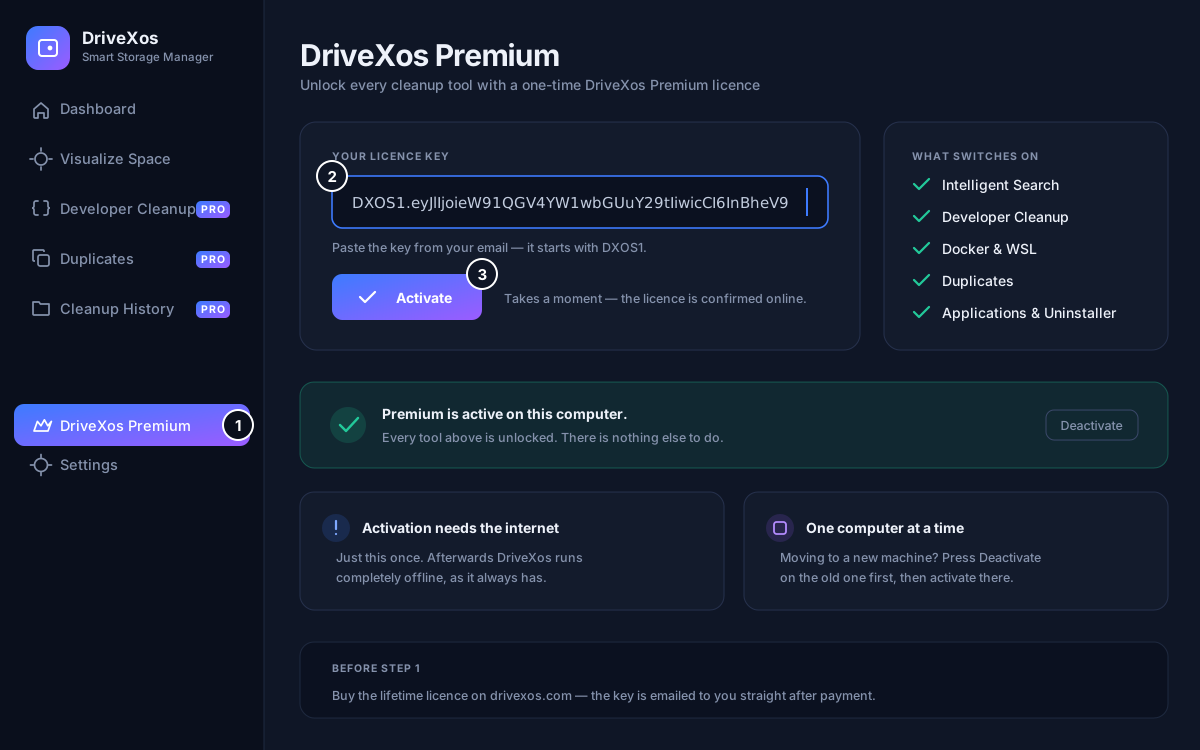
- Open DriveXos Premium. It is at the bottom of the tool list on the left.
- Paste your key into the box, exactly as it appears in the email — including the
DXOS1.at the start, with no spaces or line breaks. - Press Activate. Premium switches on straight away and every tool unlocks.
Three things to know
- Activating needs the internet — just this once, so the licence can be confirmed. If you are offline, DriveXos says so and hides the key box until you are back. Everyday use never needs a connection.
- One computer at a time. If the key is already in use somewhere else, the app tells you. Press Deactivate on the old computer, then activate on the new one.
- Reinstalling on the same computer restores Premium by itself once DriveXos checks in. You never pay twice.
Moving DriveXos to another computer
- On the old computer, open DriveXos Premium and press Deactivate.
- On the new one, install DriveXos and paste the same key.
- Press Activate. The licence is yours to move as often as you need.
No key in your inbox? Check spam and search for DriveXos, then tell us and include the email address you paid with.
Key refused, or something else not working? Try the fixes here.
Something here unclear, or not working for you?