
User guide · 1 of 9
Install DriveXos
Free to download, free to keep using. No account, no sign-up — about two minutes.
On Windows
- Download DriveXosSetup.exe from the download page.
- Run it and follow the wizard. It installs for you alone, so no Administrator password is needed.
- Open DriveXos from the Start menu.
Windows may warn that the publisher is unknown while the installer is waiting on its signing certificate. Choose More info → Run anyway.
On a Mac
- Download the disk image for your Mac: Apple silicon for M1, M2, M3 and M4, Intel for older Macs. Not sure which you have? Apple menu → About This Mac.
- Open the
.dmgand drag DriveXos into Applications. - The first time only: right-click DriveXos in Applications, choose Open, then press Open in the warning. Double-clicking will not work yet.
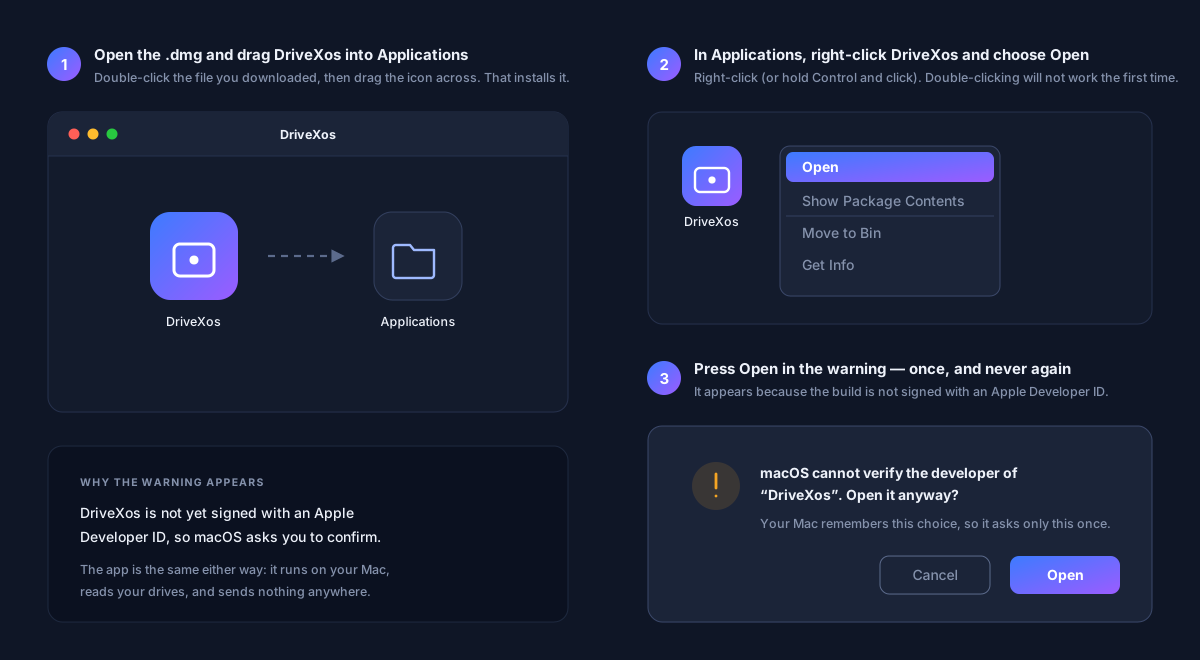
The Mac warning appears because the build is not signed with an Apple Developer ID yet. Your Mac remembers the choice, so it asks only once.
What you need
- Windows 10 (1809) or Windows 11, 64-bit — laptop or desktop.
- macOS 12 Monterey or later — MacBook, iMac, Mac mini or Mac Studio.
- Around 200 MB of free space for the app itself.
Something here unclear, or not working for you?